OTON / PRINT · BRAND · PROMO
Prepare your artwork without guesswork
Start with the finished size. Then check sharpness, background and colours for your chosen transfer type. The form flags detected issues, while you decide how the design should look.
Choose your transfer type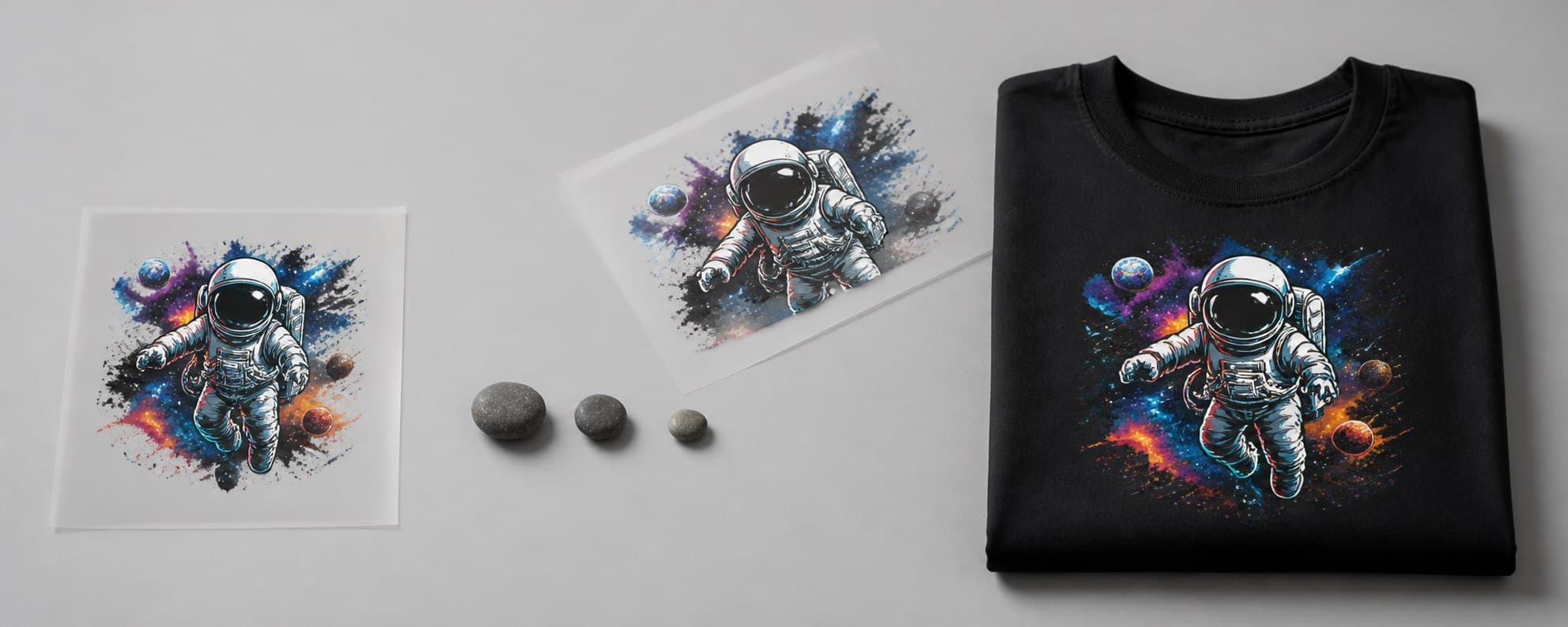
- Single-page PDF, PNG, JPG, TIFF
- Up to 100 MB per file
- 300 DPI recommended at final size
File format and dimensions
Each PDF should contain one page. Split multipage PDFs into separate files. For raster artwork, pixel count matters: 300 DPI is recommended at the actual printing size. Simply entering 300 in image properties does not add detail. Vector artwork in a PDF can remain sharp when enlarged.
Backgrounds and white areas
JPG does not support a transparent background. PNG may support it, but a particular file can still have a solid background. Check whether white is part of the artwork or a background you do not want printed. Sublimation does not print white; for other processes, clarify the intended white areas.
Colours, direction and size limits
Photographs and gradients are usually better suited to DTF than solid-colour screen printing. For screen print transfers, confirm the detected colours or set them manually. Do not mirror your file beforehand; the system handles this. If the design exceeds the print area, adjust its dimensions and recheck the preview.
Frequently asked questions
Why does a larger print look less sharp?
Spreading the same number of pixels across a larger area reduces print resolution. Use a higher-quality original or reduce the finished size; enlarging the file alone does not guarantee sharpness.
Does the preview guarantee identical colours on fabric?
No. Screens, colour profiles, materials and printing processes affect colour. The preview is for checking artwork and layout, not a physical colour proof. Tell us before ordering if an exact colour match is essential.